Imagine your laptop dies tomorrow. Suddenly, every family photo, client invoice, and CCTV clip disappears with it. However, picture all of that safe on a small box in your cabinet, copying itself every night and opening on your phone from anywhere. That is exactly what NAS storage gives you, and it costs less than most people think.
Today, many Melbourne homes and businesses hold more data than one computer can handle. Meanwhile, cloud plans keep getting pricier, and external drives fail without warning. For this reason, this guide explains how NAS storage works, where people use it, what it costs, and how to set it up the right way. In addition, you will learn the common mistakes, a simple buying checklist, and when to call a professional installer. By the end, you will know what to buy and what to skip. So, hire or contact a consultant with Wolftech Group
What Is NAS Storage?
NAS stands for network attached storage. Basically, it is a small, always-on computer that stores your files and shares them over your network. First, you plug it into your router. Then, every approved phone, laptop, and TV can reach it. In simple terms, NAS storage works like a private cloud that sits inside your own building.
How a NAS Differs From a Regular Hard Drive
An external hard drive connects to one computer by USB, so only that computer can use it. A NAS, however, connects to your network, so many devices can use it at the same time. Also, it runs all day and night. As a result, backups happen on schedule while you sleep.
The Main Parts of a NAS Device
Every NAS has four key parts. First, the enclosure holds the drives. Second, the processor and memory run the operating system. Third, the drive bays hold hard disks or SSDs. Finally, the network port links the unit to your router. In addition, better models add faster ports, more memory, and extra slots for an SSD cache, which speeds up busy workloads.
How NAS Storage Works Day to Day
Think of a NAS as a tiny server with a friendly menu. First, you log in through a web browser or phone app. Next, you create folders and choose who can open each one. After that, when you save a file to a shared folder, it travels across your network and lands on the drives inside the NAS. Then the system protects that file with the RAID method you picked.
Local and Remote Access
At home or in the office, files move at the speed of your network, which is very fast on a wired connection. Away from the building, however, you can connect through a secure remote link. For example, good setups use encrypted connections or a VPN, so strangers cannot see your files. On the other hand, poor setups open router ports with no protection, and that invites attackers.
Where People Use a NAS
Different users want different things from a NAS. Therefore, here is how common groups in Melbourne put it to work.
Home Users
Families keep photos, videos, school work, and music in one place. Moreover, the NAS can stream movies to every TV in the house. It can also back up every phone automatically. Because of this, nobody fears losing holiday pictures again.
Small Businesses
Offices use NAS storage to share documents, hold accounting files, and run nightly backups. Meanwhile, staff open the same files from different desks. Besides, version history helps them recover a file after a bad edit. Many firms also keep client records on site, which supports their privacy duties.
CCTV and Security Systems
Security cameras create a huge amount of video. For that reason, a NAS can record footage straight from IP cameras and keep weeks of clips on large drives. In fact, NAS storage suits CCTV well because it offers more space and more flexibility than the small recorder that comes with many camera kits.
Creative Studios and Video Editors
Photographers and video teams work with massive files. Therefore, a NAS lets several editors open the same project over a fast wired network. Clearly, that beats passing USB drives around the studio.
Benefits of NAS Storage
A NAS earns its place because it solves several problems at once. Next, these benefits matter most to our clients.
One Central Home for Your Files
Instead of scattering files across laptops, phones, and old drives, you keep everything in one organized spot. As a result, search becomes faster, and sharing becomes simple.
Built-In Protection
Most units support RAID, snapshots, and scheduled backups. For instance, if one drive dies, your files survive. Likewise, if you delete a file by mistake or ransomware locks it, a snapshot lets you roll back to an earlier version.
Lower Long-Term Cost
Cloud plans charge you every month, forever. A NAS, on the other hand, costs more on day one. However, you pay no monthly fee for your own space. After two or three years, the NAS often wins on price, especially for large libraries.
Privacy and Control
Your files stay on your own hardware. Therefore, you decide who gets access, how long you keep data, and where backups go. This control matters to businesses that handle client information.
Easy Growth
You can swap in bigger drives or add an expansion unit later. So, you do not need to replace the whole system when your needs grow.
Drawbacks to Know Before You Buy
No tool fits every case, so look at the downsides first. To begin with, the upfront cost runs higher than a single external drive. Also, a NAS needs proper setup, and a rushed setup creates weak security. Moreover, a NAS does not replace a full backup, because fire, theft, or a power surge can damage the whole unit. Besides that, drives wear out, so you must replace them every few years. Finally, a NAS uses a little power all day, although most units cost only a few dollars a month to run. These points sound serious. Still, each one has a fix, and a good installer plans around them from the start.
NAS Storage vs Cloud Storage vs External Drives
| Feature | NAS | Cloud Storage | External Drive |
|---|---|---|---|
| Upfront cost | Medium to high | Low | Low |
| Ongoing cost | Low (power only) | Monthly fee | None |
| Many devices at once | Yes. | Yes. | No |
| Remote access | Yes, with setup. | Yes, built in. | No |
| Privacy control | High | Depends on the provider | High |
| Speed on local network | Very fast | Depends on your internet. | Fast on one computer |
| Automatic backups | Yes. | Yes. | Usually manual |
| Best for | Homes, offices, CCTV | Light users, easy sharing | Quick personal backups |
NAS vs NVR: Which Suits Your Security System?
An NVR, or network video recorder, records camera footage and nothing else. A NAS, in contrast, does that job and much more. For example, if you run four cameras and want a simple setup, an NVR works well. However, if you want to store camera video, share office files, and run backups on one device, NAS storage gives you more value.
In practice, many Melbourne sites use both. The NVR handles live recording, while the NAS keeps long-term archives and backups. Therefore, your camera count, your budget, and your future plans should guide the choice.
How Much Does NAS Storage Cost in Melbourne?
Prices change with brand, size, and drive type, so treat these figures as rough estimates in Australian dollars. Also, most NAS units sell without drives, so always add the drive cost to your budget.
| Item | Typical Range (AUD) |
|---|---|
| 2-bay NAS unit (empty) | $300 – $700 |
| 4-bay NAS unit (empty) | $600 – $1,400 |
| NAS-rated hard drive (4–8 TB each) | $150 – $350 |
| Large NAS drive (12–20 TB each) | $400 – $800 |
| UPS battery backup | $150 – $400 |
| Professional setup and configuration | $200 – $600+ |
| Extra data cabling or switch | Quoted after a site visit |
How to Choose the Right NAS Storage
A smart choice saves money and stress. So, check these points before you buy.
Count the Drive Bays
First, pick a unit with at least one more bay than you need today. For instance, a two-bay model suits light home use. Meanwhile, four bays suit most small offices and CCTV setups. Larger teams, however, should look at six or eight bays.
Choose Proper NAS Drives
Use drives that makers design for NAS use, not cheap desktop drives. Indeed, NAS drives handle 24-hour operation, heat, and vibration far better. Therefore, this one choice cuts your failure risk a lot.
Check the Processor and Memory.
Light file sharing runs fine on a basic processor. However, video streaming, virtual machines, and many camera streams need a stronger one. As a rule, aim for at least 4 GB of memory for business use, and add more if you plan to run apps.
Look at Network Speed.
Standard gigabit ports suit most homes. Editors and busy offices, however, benefit from 2.5 GbE or 10 GbE ports. Also, make sure your switch and cables match that speed, or you will waste the upgrade.
Pick a Brand With Good Software and Support
Well-known brands release steady software updates, security patches, and helpful guides. In fact, the software matters as much as the hardware, because you will use it every day.
Key Software Features Worth Having
Good software turns a box of drives into a useful tool. First, look for snapshots, which save earlier versions of your files. Second, check for a mobile app so you can reach files and photos on the go. Third, a built-in surveillance app helps if you plan to record cameras. In addition, email alerts tell you when a drive shows trouble. Likewise, user permissions and storage quotas help you control who sees what and how much space each person uses. Finally, cloud sync lets you copy your most important folders to an off-site service automatically.
How Much NAS Storage Capacity Do You Need?
| Use Case | Suggested Usable Space |
|---|---|
| Family photos and documents | 2 – 4 TB |
| Photos, videos, and phone backups | 4 – 8 TB |
| Small office (5–10 staff) | 8 – 16 TB |
| 4 CCTV cameras, 30 days of footage | 4 – 8 TB |
| 8 CCTV cameras, 30 days of footage | 8 – 16 TB |
| Video editing team | 20 TB or more |
RAID Levels Explained in Plain English
RAID joins several drives into one protected pool. Therefore, the level you choose decides how much space you get and how many drive failures you can survive.
| RAID Level | Minimum Drives | Protection | Space Efficiency | Best For |
|---|---|---|---|---|
| RAID 0 | 2 | None | 100% | Speed only, never for important data |
| RAID 1 | 2 | Survives 1 drive failure | 50% | Home users, small setups |
| RAID 5 | 3 | Survives 1 drive failure | Good (loses one drive) | Small offices, CCTV |
| RAID 6 | 4 | Survives 2 drive failures | Fair (loses two drives) | Large drives, important data |
| RAID 10 | 4 | Survives 1 failure per pair | 50% | Busy, speed-sensitive work |
Step-by-Step NAS Storage Setup Process
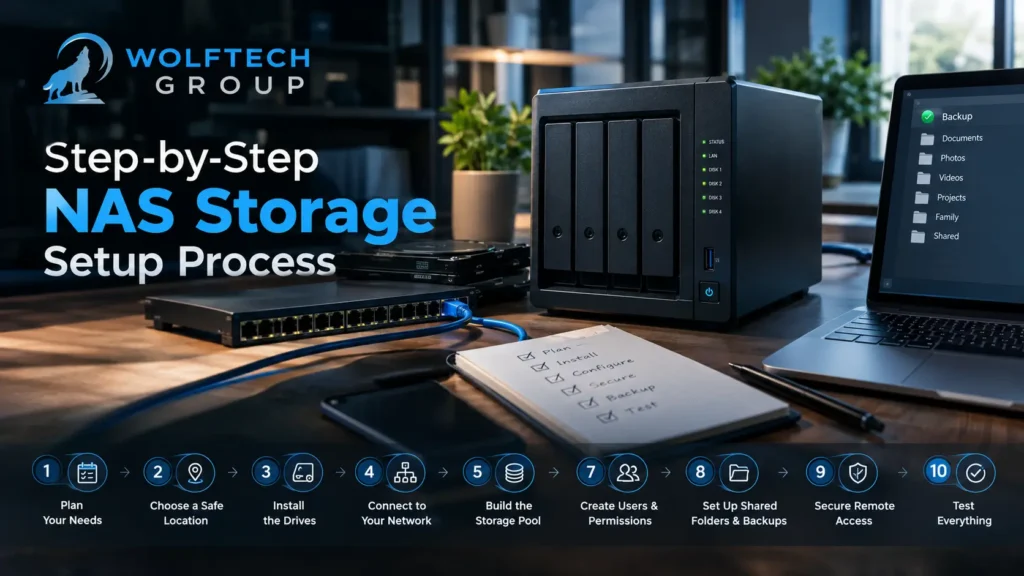
A clean setup follows a clear order. Professionals team, therefore, work through these steps every time.
Step 1: Plan Your Needs
First, list your users, devices, file types, and camera count. Then decide how much space and protection you need. Good planning, in turn, prevents costly changes later.
Step 2: Choose a Safe Location
Next, place the NAS in a cool, dry, ventilated spot. Avoid sunny windows, closed cupboards with no airflow, and floors that can flood. Also, put it close to your router or switch so you can use a wired cable.
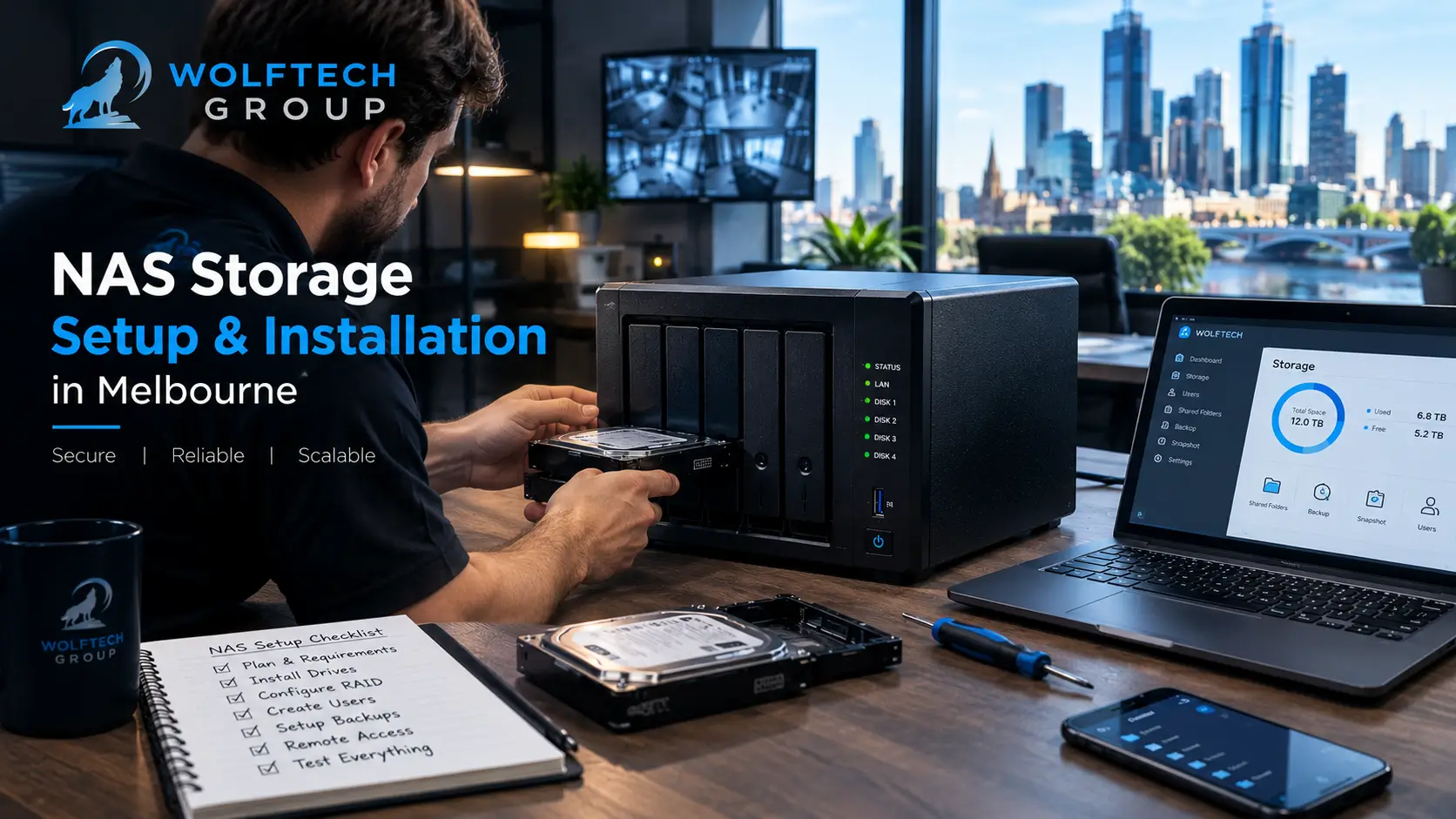
Step 3: Install the Drives
Then slide each drive into its bay and secure it. Use drives of the same size and speed. Additionally, many experts buy drives from different batches, which lowers the chance of several drives failing together.
Step 4: Connect to Your Network
After that, plug the NAS into your switch or router with an Ethernet cable. Avoid Wi-Fi for the main connection, because wired links give faster and steadier transfers.
Step 5: Install the Operating System
Now power on the unit and follow the on-screen guide to install the software. Then update it to the latest version straight away. In fact, newer versions fix bugs and close security holes.
Step 6: Build the Storage Pool
Next, choose your RAID level and create the volume. Also, pick a file system that supports snapshots if your device offers one. This step shapes how safe and fast your NAS storage will be.
Step 7: Create Users and Permissions
Make an account for each person. Then give each user access to only the folders they need. Never share one admin login among staff, because shared logins hide who changed what.
Step 8: Set Up Shared Folders and Backups
After that, create folders for each team or purpose. Next, schedule backups from computers and phones to the NAS. Finally, turn on snapshots so you can undo mistakes.
Step 9: Secure Remote Access
First, turn on two-factor authentication and use strong passwords. Then use a VPN or the maker’s secure relay service instead of opening router ports. Also, disable default admin accounts and any service you do not use.
Step 10: Test Everything
Finally, restore a sample file from a backup and check that alerts reach your email. Also, test access from a phone and a laptop. After all, a backup you never tested gives you hope, not protection.
Why Professional NAS Storage Installation Is Worth It
Many people try a DIY setup, and some succeed. However, a professional install saves time and avoids hidden risks. For instance, a trained technician checks your cabling, picks the right drives, sets the correct RAID level, locks down security, and tests every feature.
At Wolftech Group, our team already handles data cabling, PoE switches, server racks, CCTV, and office network setup across Melbourne. Therefore, one provider can plan your NAS storage, wire the site, connect your cameras, and support you afterwards. As a result, you deal with one team instead of three contractors, and you get a clear handover when the job ends.
Common NAS Storage Mistakes to Avoid
| Mistake | Why It Hurts | Better Approach |
|---|---|---|
| Using RAID as the only backup | Fire, theft, and ransomware still destroy data | Add an off-site or cloud copy |
| Buying desktop drives | They fail faster under 24-hour use | Choose NAS-rated drives |
| Leaving default passwords | Attackers try them first | Create strong, unique logins and turn on 2FA |
| Opening router ports directly | It exposes the NAS to the internet | Use a VPN or secure relay |
| Skipping the UPS | Power cuts corrupt data | Add a UPS with auto shutdown |
| Ignoring updates | Known bugs and security holes stay open | Update on a schedule |
| Using Wi-Fi for the main link | Transfers run slow and drop out | Use wired Ethernet |
| Buying too little space | You must rebuild too soon | Plan for two to three years of growth |
A Simple Maintenance Routine
A little regular care keeps your NAS healthy for years. Each month, check drive health, free space, and backup logs. Then, every three months, install software updates and test a file restore. Once a year, clean the dust from vents, review your capacity, and plan to replace drives that near the five-year mark. Overall, this routine takes minutes and prevents most disasters.
Related Article: CCTV Camera Installation in Melbourne | Wolftech Groups
Conclusion
In short, a NAS gives you one safe, private place for your photos, business files, and CCTV footage. It saves money over time, grows with your needs, and keeps you in control of your data. Therefore, the key steps are simple: choose NAS-rated drives, pick a sensible RAID level, secure remote access, and keep a separate backup copy.
Overall, good planning and a clean installation make the difference between a system that works for years and one that fails at the worst moment. So, if you want expert help, Wolftech Group can design and install NAS storage that fits your home, office, or security system in Melbourne.
Frequently Asked Questions
What Is NAS Storage Used For?
It holds files, photos, videos, and backups in one place and shares them across your network. For example, homes use it for media and phone backups. Likewise, businesses use it for shared documents and CCTV video.
Is a NAS Better Than Cloud Storage?
Neither wins in every case. However, a NAS costs less over time and gives you more control. Meanwhile, cloud storage is easier to start and works well as an off-site copy. Therefore, most experts suggest using both.
How Much Does NAS Setup Cost in Melbourne?
Hardware, drives, and installation all affect the price. For example, small home setups often cost under $1,500 all up, while four-bay business and CCTV systems can cost several thousand dollars. Therefore, a site visit gives you an exact quote.
Can I Use a NAS for CCTV Cameras?
Yes, most modern NAS units record IP camera video through built-in surveillance software. However, use surveillance-rated drives, calculate your capacity carefully, and add a UPS.
How Long Do NAS Drives Last?
Quality NAS drives usually last three to five years, and many run longer. Still, replace them when health warnings appear or when they reach about five years old.
Can Hackers Attack a NAS?
Attackers target weak setups, not well-configured ones. Therefore, use strong passwords, two-factor login, regular updates, and a VPN. Also, never expose the device directly to the internet.
Do I Need RAID?
Yes, if your data matters. RAID keeps your files available after one drive fails. However, you still need a separate backup, because RAID cannot undo deletions or survive a fire.
Can a NAS Work Over Wi-Fi?
It can, but wired Ethernet works far better. So, plug the NAS storage into your router or switch with a cable, and let your phones and laptops use Wi-Fi to reach it.